The Complete Beginner's Guide to Building and Publishing Your Website on Acyera
By the Acyera team · Published 14 March 2026 · Updated 12 October 2026
Most people who want a professional website face the same choice: pay a developer and wait weeks for a site they cannot update themselves, or settle for a rigid template. Acyera was built to close that gap. It is a website builder where you put pages together from ready-made blocks, so anyone, from a first-time business owner to a busy agency, can publish a fast, professional website without writing code.
This guide walks you through everything you need to know to go from a blank page to a live, indexed, and professional web presence using Acyera. Whether you are building a personal portfolio, a business landing page, a community platform, or an entire network of microsites, the process follows the same intuitive flow. Read through this guide at your own pace, and by the end of it, you will have a complete mental picture of how the platform works so that when you open the editor for the first time, you will know exactly what to do.
What You Will Learn in This Guide
This article is organized so that you can read it from beginning to end as a complete course, or jump directly to the section most relevant to where you currently are in your journey. Use the navigation links below to move between sections instantly.
1. What Acyera Is and Who It Is Built For
2. Before You Start: Preparing Your Content
3. Getting Started with the Sandbox
4. Understanding the Block System
5. Using the Inspector Panel (Desktop and Mobile)
6. Previewing Your Page Before You Publish
7. Saving Your Work and Creating a Live Page
8. Managing Your Site from the Dashboard
9. Automated SEO: How Acyera Handles Search Indexing for You
10. Free vs Premium Blocks and Pricing
11. Building on Your Phone: A Fully Mobile-Capable Editor
What Acyera Is and Who It Is Built For
Acyera is a managed, multi-tenant web platform that combines the visual freedom of a block-based site builder with the performance infrastructure of modern cloud hosting. The platform runs on Next.js, which means every page you publish benefits from server-side rendering, edge delivery, and the kind of loading performance that Google rewards in search rankings. All of this happens automatically. You do not need to configure a server, set up a hosting environment, choose a CDN, or manage SSL certificates. The moment you publish a page on Acyera, it is live on a globally distributed network.
One Acyera account can run more than one website, each with its own address, pages and design, depending on your plan. You might run a portfolio at yourname.acyera.com today and add a site for a second business later, all from the same dashboard.
The platform is built for people who value their time. For example,
- A freelance designer who wants to showcase their portfolio without calling a developer.
- A restaurant owner who needs a reservation page but cannot afford agency fees.
- A nonprofit that wants to publish impact reports without waiting for IT support.
- A content creator who needs a monetizable blog with native AdSense integration.
- An agency that manages sites for multiple clients
- A standalone business that needs to establish an online presence
All of these users arrive at the same environment and use the same building blocks, yet the sites they create are entirely distinct because the block system adapts to any purpose without constraining the creative vision behind it.
Before You Start: Preparing Your Content
One of the most common mistakes people make when they first open a visual website builder is starting to drag blocks onto the page before they have decided what the page actually needs to say. The result is a page that looks assembled rather than designed, with placeholder text and generic images that communicate nothing specific about the business. To avoid this, the most efficient approach is to prepare your content before you open the editor.
Content preparation does not require any technical skill. It simply means gathering and organizing the raw materials you intend to put on your page before you begin placing blocks. Think of it the way a cook thinks about mise en place: having everything ready before you start cooking means the actual process is focused and efficient rather than interrupted. For a website, those raw materials typically include the written copy for each section, the images or videos you want to display, any contact details or social links you plan to publish, and a rough idea of how you want sections to be ordered.
For written content, you can prepare it in a plain text document or even a notes app on your phone. Write your headline, your subheading, a short description of what you offer, and any other text you want to appear on the page. For images, gather them in a folder on your device and ensure they are appropriately sized. Very large image files will slow your page down, so resizing photos to a width of around 1200 to 1500 pixels before uploading them is a practical habit that will serve your performance scores well. Even though we have a powerful enterprise-grade image optimization engine, it is still necessary that you feed it pre-optimized images for better performance. Beyond images, if you plan to include a contact form, decide what fields it should capture. If you want a map showing your business location, note the exact address you want to display.
Tip: Keep a simple document with your headlines, body paragraphs, and image file names organized before you open the editor. With your content ready, building a complete page takes a fraction of the time it would otherwise require, and the result is always more polished
Getting Started with the Sandbox
Acyera provides a free, fully functional sandbox environment at acyera.com/sandbox that you can use to build, experiment, and design your page entirely before it ever touches a live database. The sandbox gives you access to the complete block library so you can try any block, compose any layout, and experiment with any design direction without committing to anything. It is the best place to start, regardless of whether you are a complete beginner exploring the platform for the first time or an experienced builder sketching out a new concept.
Opening the sandbox requires no account and no login. Navigate to acyera.com/sandbox in any browser and you will see a clean canvas with a single plus icon in the center of the screen (Note: If it is your first, you will see a default hero block that you can easily remove to start blank). That icon is your entry point into the entire building experience, and the workflow that follows from clicking it is intuitive enough that most users understand it within their first few minutes of exploration.
One of the most practically useful aspects of the sandbox is that it works completely offline once the page has loaded. If your internet connection drops, your work is not lost and you can continue building without interruption. The platform automatically saves your progress in your browser's local storage, so even if you close the tab and return later, your design will be waiting exactly as you left it. A manual save button is also available if you prefer to save deliberately at specific moments, but the autosave behavior means you are always protected against accidental loss.
Note: you can build in the sandbox with no connection, but Preview needs the internet. Build offline, go online to preview, then carry on offline if you like. This works only in the sandbox: the dashboard needs a connection throughout, which is one reason to build in the sandbox first.
The sandbox lives entirely in your browser. When you are happy with your page, press Publish. You sign in or create an account, choose your web address, and your site goes live. If you already have a site, you can add the design to it as a new page instead. The sandbox also has a "Save as template" button, which keeps the design in your account so you can start other pages from it.
Tip: If you are testing Acyera for the first time without an account, the sandbox gives you the full building experience. When you are ready to go live, creating an account takes only a moment and your sandbox work can be saved immediately.
See It in Action
Watch how to get started with the Acyera Sandbox
Understanding the Block System
The entire Acyera platform is built around a block-based content model. Rather than providing a set of rigid page templates where you swap out text and images while the underlying structure remains fixed, Acyera lets you compose any page from scratch by selecting and arranging individual blocks. Each block is a self-contained unit with its own purpose, its own design controls, and its own semantic HTML output. When you add a heading block, it generates a properly structured heading. When you add a card block, it generates a visually styled content panel. Because every block outputs clean, semantic markup, the pages you build are understood correctly by search engines, screen readers, and other web tools without any additional optimization work on your part.
Adding a block to your page always begins with the plus icon. Clicking it opens a modal panel that lists every available block organized into categories. You scroll through the options, click the block you want, and the modal closes as the block appears on your canvas at the bottom of the current page. From that point, you can click on the block to select it and begin adjusting its appearance and content through the inspector panel.
Note: Some blocks let you make changes on them directly on the canvas. For example, most controls of the RichText block are on its canvas.
The block library covers an extensive range of use cases, and rather than describing every block individually, it is more useful to understand the categories that exist so you can reach for the right tool intuitively. Structural blocks like the container, columns, and hero allow you to organize the overall layout of a section. Content blocks like rich text, headings, images, videos, and lists fill those structures with information. Interactive blocks like contact forms, buttons, countdown timers, and review systems let visitors engage with your page. Social blocks like the WhatsApp integration, share buttons, and comments turn a static page into a two-way communication channel. Specialized blocks like the stats counter, testimonials, team members display, and image grid address common presentation patterns that would otherwise require custom design work.
Layout blocks deserve a specific mention because they are particularly powerful. The columns block, for example, lets you create two, three, or four side-by-side column areas and drop any other blocks into each column independently. This means you can place a video in one column and a rich text block in the next, creating a split-screen section without any CSS knowledge. The container block wraps other blocks in a styled section with configurable padding, background color, border radius, and shadow, giving you the equivalent of a styled div element through a visual interface. The hero block assembles a full-width section with a background image or color, a heading, a subheading, and optional nested blocks like buttons, all configured visually. Nesting blocks inside other blocks is the core technique that enables complex layouts, and the platform supports it naturally.
For monetization-oriented builds, the native AdSense blocks deserve attention. These blocks allow you to place Google AdSense display units, in-article ad slots, and in-feed ad units directly on your page by entering your publisher credentials in the site configuration. The blocks inject advertisement code asynchronously, which means your core page content loads first and the ad units fill in afterward, protecting your Core Web Vitals scores from the layout shifts that plague manually inserted ad scripts.
Using the Inspector Panel on Desktop and Mobile
Once you have placed a block on your canvas, you control every aspect of its appearance and behavior through the inspector panel. On a desktop or laptop screen, this panel appears as a permanent sidebar on the right side of the editor. It is always visible and always reflects the controls for whichever block you have currently selected on the canvas. Clicking a different block updates the inspector immediately to show the relevant controls for that block, so the workflow feels immediate and responsive rather than modal and disruptive.
The controls available in the inspector depend entirely on the block you have selected. Selecting a heading block surfaces controls for the text content, the heading level (H1 through H6), the text color, and the horizontal alignment. Selecting an image block opens controls for the image source, alternative text, sizing mode, object fit, border radius, shadow, image filters, and lazy loading behavior. Selecting a container block exposes controls for background color, padding, border, shadow, and the container width. In every case, you make a change in the inspector, and the canvas reflects that change in real time so you can immediately judge whether it looks right.
There is one category of changes that will not produce a visible update on the canvas because the changes control behavioral logic rather than visual appearance. Enabling the open-in-new-tab option on a button block is a good example. The button looks identical on the canvas regardless of this setting, but when the page is live, links will open in a separate browser tab. Similarly, configuring a contact form with a recipient email address produces no visual change in the editor but determines where form submissions are delivered once the page is published. When you encounter a control like this and do not see an immediate canvas update, there is no problem with the setting. The change has taken effect and will behave as expected on the live page.
Note: Not every inspector change produces a visible canvas update. Controls that govern behavior, such as link targets, email recipients, and authentication settings, take effect on the live published page. The absence of a visual change in the editor for these settings is entirely normal.
On smartphones and tablets, the inspector panel does not appear as a permanent sidebar because the screen dimensions would make it impractical. Instead, each block on the canvas displays a small gear icon when it is in focus. Tapping this icon opens a bottom sheet that slides up from the bottom of the screen and contains the same controls available in the desktop sidebar. You can make every adjustment available on desktop from your phone through this interface, and the canvas above the bottom sheet updates in real time as you modify settings.
This mobile editor capability is worth emphasizing because it is a practical feature with real implications for accessibility. A significant portion of the world accesses the internet primarily through smartphones, and many small business owners in emerging markets do not have regular access to a laptop or desktop computer. Because Acyera's editor works fully on a phone, these users can build and manage complete professional websites using only the device already in their pocket. The experience is genuinely functional rather than a degraded fallback, and anyone willing to invest a few hours can publish a polished page without needing a computer at any point in the process. For desktop users, the experience is more spacious and efficient, but the phone editor is not a concession. It is a deliberate design commitment to accessibility.
Previewing Your Page Before You Publish
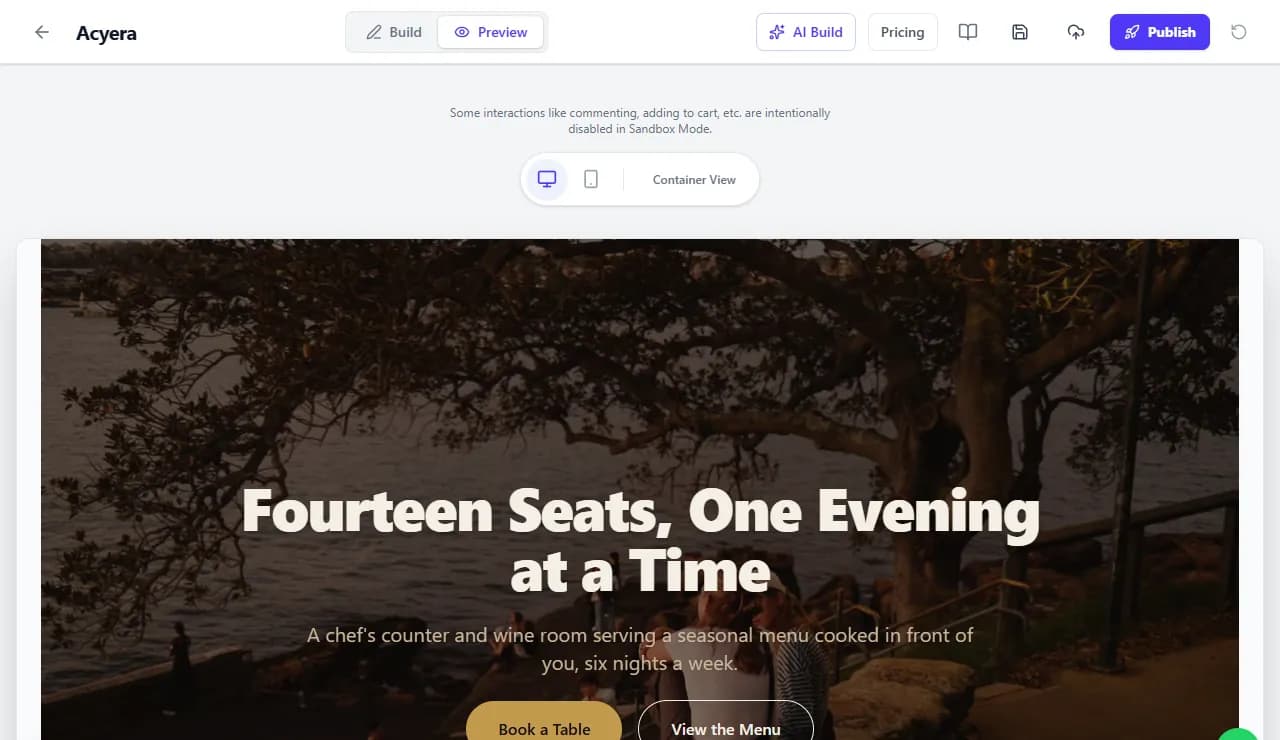
Building a page in the editor gives you a close visual representation of the final result, but the canvas view is an editing environment rather than an exact replica of the published page. Before pushing your work live, Acyera provides a dedicated preview mode that shows you how the page will appear to your actual visitors, both on desktop screen sizes and on mobile screens.
To access the preview, click the preview tab at the top of the editor interface. You will see two options: a desktop preview and a mobile preview. Switching between them lets you check that your layout adapts correctly across screen sizes, which is particularly important for sections built with the columns block, where two or three columns that look elegant on a wide screen may need to verify they stack gracefully on a phone.
The preview is the closest approximation the sandbox environment can offer to the live deployed page, but it is worth understanding a small caveat: the preview may not perfectly replicate every aspect of the final published output, particularly for dynamic elements like comment sections, review feeds, or user authentication flows that depend on live database connections to function. For content and layout purposes, however, the preview is reliable and gives you a strong sense of how your page will look. Use it to catch obvious issues like text that is too small on mobile, images that overflow their containers, or sections that need additional spacing before the page reaches real visitors. You can further confirm and cross-check the changes after publishing your content.
Tip: Toggle between the desktop and mobile previews after completing each major section of your page, not just at the end. Catching layout issues early means you adjust one block rather than restructuring multiple sections.
Saving Your Work and Creating a Live Page
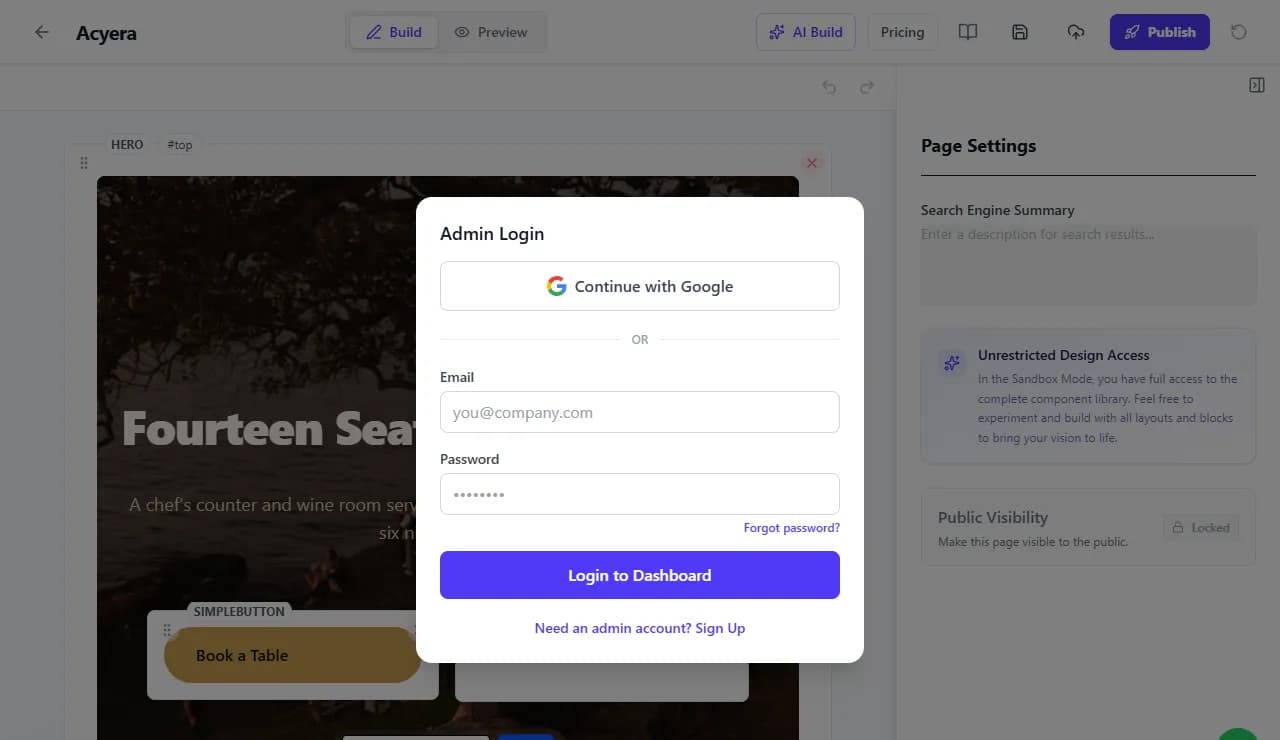
When you have built and previewed your page in the sandbox, press Publish at the top of the editor. A page needs at least five sections before it can be published, which stops half-finished pages going live by accident. You then sign in or create an account with Google or an email address.
Next you give your business name, choose your web address, such as yourname.acyera.com, and say where your business is based. You can tick "Also save as a reusable template" to keep a copy of the design. Your site is created and published straight away. If you already have a site and no free slot for another, you can add the design to it as a page or make it the home page. (Starting from the AI builder, the same step also asks for your WhatsApp number.)
If your design uses sections from a paid plan and your account is on the Starter plan, it can still go live: a Starter site may keep paid sections for 21 days after its first publish, so you can see your real site working before you decide. Only you see the reminder about which plan keeps them. From then on, you edit the site from your dashboard at acyera.com/dashboard, where each page has its own title, address (slug) and search summary.
If you prefer to build directly from the dashboard rather than the sandbox, that workflow is equally valid. The advantage of starting in the sandbox, however, is that dashboard changes can be viewed only after publishing, while sandbox changes are visible immediately in the preview tab without affecting any live content. For new users especially, the sandbox provides a lower-stakes environment to learn the platform's capabilities before anything goes public.
Managing Your Site from the Dashboard
The Acyera dashboard is the control center for your entire digital presence on the platform. From a single login, you can create and manage multiple sites, each with its own subdomain, its own collection of pages, and its own design identity. The administrative interface is built around clarity and directness: the actions most frequently needed, creating a page, editing an existing page, publishing or unpublishing content, and checking site settings, are all accessible within a few clicks from the main dashboard view.
Creating a new site from the dashboard involves assigning a subdomain, which becomes the primary address for that site. The platform validates subdomains automatically to ensure they are formatted correctly and do not conflict with existing sites in the system. Once a site is created, you can begin adding pages to it immediately. Each page receives a title and a slug, which together determine how the page appears in navigation and in search results. The dashboard enforces clean slug formatting automatically, converting spaces to hyphens and stripping characters that would cause URL problems, so you do not need to worry about the technical details of URL construction.
Publishing and unpublishing pages takes effect within about a minute. There is no deployment to wait for. A published page is added to your site's sitemap straight away, and search engines can list it once your site is visible to them (see the section on search below).
For site owners managing a meaningful volume of pages, such as a content resource hub or a community platform with dozens of posts, the dashboard provides organizational tools to keep pages manageable. You can filter pages by publication status, view creation and update timestamps, and navigate directly from the page list into the editor for any specific page. This directness means routine content updates, correcting a typo, swapping an image, updating contact information, take only moments rather than requiring a support ticket or developer involvement.
Search engines: what Acyera does for you, and the one switch you turn on
Search engine optimization involves a range of technical tasks that most website owners either overlook or handle incorrectly, often through a fragmented collection of plugins and manual configurations. Acyera approaches SEO differently by building the most important technical requirements directly into the platform infrastructure. The result is that pages published on Acyera arrive in a search-engine-ready state from their very first moment of publication, without any plugin setup, without manual sitemap submission, and without a separate SEO audit workflow.
The most fundamental automated SEO feature is sitemap generation. Every Acyera site maintains a live sitemap.xml file that updates automatically whenever a page is published or unpublished. The moment you publish a new page, it appears in the sitemap. The moment you take a page offline, it is removed. This sitemap is always current, which means search engine crawlers that visit your site always find an accurate inventory of your publicly accessible content. No sitemap plugin to install, no manual submission required, and no risk of your sitemap going stale because you forgot to update it after publishing new content.
Alongside the sitemap, Acyera automatically generates and maintains your robots.txt file, which tells search engine crawlers which parts of your site they should and should not index. The platform configures this file correctly for the standard use case, protecting administrative routes while ensuring all public content is freely crawlable. For the vast majority of sites, the default configuration is exactly correct and requires no adjustment.
A new site starts hidden from search engines, so nothing unfinished is found under your name. Your site's page in the dashboard shows a short "Get found on Google" checklist: a real name, a sentence about your business, no template text or unchecked sample content, enough to read, and a way to reach you. When every item is done, your site is offered to search engines by itself three days later. You can also choose for yourself in Site Settings, under "SEO & Social Sharing", "Show my site on search engines".
Once it is visible, your sitemap tells search engines every published page and the date its content last changed, Bing and the search engines that share its list are told about each change you publish, and each page carries structured data describing the site, your business details from your Business profile and, where a page has them, its questions and answers and videos. If you built with the AI builder, your search words come from Google's data and "Your search words" shows each one. "What Acyera does for you", on the same page, lists all of this. Expect a new site to take weeks to appear in search and months to settle.
The technical SEO foundation also extends to how pages are structured. Because Acyera uses server-side rendering through Next.js, every page is delivered to search engine crawlers as complete, pre-rendered HTML. Crawlers do not need to execute JavaScript to read your content, which eliminates one of the most common sources of indexing problems on platforms built around client-side rendering. The block system itself enforces semantic HTML structure: heading blocks produce proper H1 through H6 elements, list blocks produce semantic list markup, image blocks include alt text fields that are factored into the search index, and the overall page hierarchy reflects the visual structure you create in the editor.
Free vs Premium Blocks and Understanding Acyera Pricing
Acyera operates on a tiered access model where a set of core blocks is available at no cost, and additional blocks with more specialized functionality are available through premium plans. This model allows anyone to build a genuinely useful, functional website using only free blocks, while providing a clear upgrade path for users who need advanced capabilities like AdSense integration, community features, or specialized interactive components.
The free tier is designed to cover the needs of a typical informational website or personal portfolio. It includes the structural blocks for layout, the foundational content blocks for text and images, and the basic interactive blocks such as the simpleButton. A user building a small business homepage with a hero section, a description area, and images can complete that build entirely within the free tier without restriction.
Premium blocks extend the platform's capabilities into more advanced territory. If you intend to place AdSense advertising units on your pages, enable user comments or community discussions, build e-commerce pages with payment gateway integrations, or use certain specialized interactive blocks, those features are part of the premium tier.
One convenient aspect of the sandbox is that it gives you access to all blocks for design and experimentation purposes. You can build a page using any block you like in the sandbox to see how the layout looks and how the blocks interact. When you attempt to save that design to the live database, the platform will flag any premium blocks in your design if your current plan does not include them. This means you can design freely without worrying about plan restrictions and only need to upgrade when you are ready to publish something that uses premium functionality.
Note: The sandbox is always fully open for experimentation regardless of your plan. You will only encounter plan restrictions when saving your design to the live database for publication.
Building on Your Phone: A Fully Mobile-Capable Editor
One of Acyera's most deliberate design decisions is that the entire page-building experience works on a smartphone. This is not a simplified or stripped-down mobile version of the editor. It is the same complete block library, the same design controls, and the same publishing capability available on desktop, adapted for touch interaction on a small screen.
On mobile, the canvas occupies the full screen width and blocks are displayed in the same top-to-bottom vertical sequence you would see on a desktop. Adding a block still begins with the plus icon, which opens the same block selection modal. Tapping a block on the canvas selects it, and the gear icon that appears gives you access to all inspector controls through a bottom sheet that slides up from the bottom of the screen. You make your adjustments, the canvas updates immediately above the sheet, and you close the sheet when done. The entire interaction is optimized for touch rather than simply scaled down from mouse-and-keyboard assumptions.
This mobile capability has practical significance for a wide range of Acyera users. Photographers managing their portfolio between shoots. Marketers updating a landing page from a client meeting. Community managers moderating content while commuting. Small business owners in markets where smartphone penetration significantly outpaces laptop ownership. For all of these users, the mobile editor is not a workaround but a genuine primary interface. Building an entire professional website from a phone on Acyera is a real and supported workflow, and the resulting sites are identical in quality, performance, and functionality to those built on desktop.
That said, the desktop experience offers practical advantages worth acknowledging. A larger screen allows you to see more of your page at once, making spatial layout decisions more intuitive. The permanent inspector sidebar on desktop means you never need to open and close a bottom sheet to access controls. For users who have access to both a phone and a desktop, desktop building is typically faster and more comfortable. But for users whose phone is their primary or only device, the mobile editor delivers everything required to build and launch a professional site without compromise.
Getting Support and Requesting Professional Design Assistance
Acyera is designed to be learnable by beginners without a guide, but every platform has moments where a specific question needs a specific answer. When that happens, the support team is accessible through two straightforward channels. You can reach out by email at support@acyera.com for detailed questions, feedback, or anything that benefits from a written record. You can also contact the team through the WhatsApp button visible in the bottom right corner of this page, which connects you directly to a team member for quicker conversational exchanges.
For users who are learning the editor and are unsure whether a particular layout approach is achieving the right visual result, the team is happy to discuss your design goals and suggest approaches. Questions about which blocks work best for a specific use case, how to achieve a particular layout arrangement, or how to configure a specialized block like the review system or the countdown timer are all welcome. The goal of the support team is not simply to answer technical questions but to help you arrive at the result you actually envisioned when you decided to build your site.
Beyond answering questions, Acyera offers a distinctive professional assistance feature that is worth understanding clearly. Once you have published a page or a site and you would like the Acyera design team to review it and propose or implement improvements, you can request this service directly. The process requires you to send an official email to support@acyera.com explicitly granting consent for a team member to access your site and edit the page of interest. This consent email is important because the Acyera team will never access or modify your content without your explicit, written authorization. Once consent is confirmed and the request is approved, a dedicated team member will open the relevant page in the editor, make the agreed improvements, and publish the result. Your site, your content, and your audience remain entirely under your ownership throughout this process. The team member's role is purely that of a skilled collaborator acting on your explicit invitation.
This professional assistance feature makes Acyera an unusually accessible option for users who are confident in their content but uncertain about design decisions. Rather than hiring an agency or a freelance designer for a one-off engagement, you can build the content yourself, publish a draft, and then invite the Acyera team to review it and elevate the design. The result is a professional-quality outcome achieved through a collaborative process that keeps you in control at every step.
Tip: When requesting design assistance, the more detail you include in your email about what you are trying to achieve, the more effectively the team can help. Sharing the URL of the specific page, describing the visual outcome you want, and noting any elements you particularly want to preserve makes the collaboration faster and more accurate.
Note: This form of assistance from the Acyera design team is only available to users with at least an essential tier enabled. If you are on the free tier, you can still reach out for any other inquiries, and we will be happy to help.
A Step-by-Step Summary: From Zero to Published in One Session
For readers who prefer a condensed, action-oriented summary alongside the detailed sections above, the following sequence captures the complete workflow from your first visit to a live published page.
Step 1: Prepare your content.
Write your headlines and body text in a plain document. Gather your images and resize them to reasonable dimensions. Note your contact details, business address, and any links you plan to include.
Step 2: Open the sandbox.
Visit acyera.com/sandbox in any browser. No login is required. The canvas will be empty and ready. If you are opening the sandbox for the very first time, you will see a default hero block on the canvas. Simply click the 'X' in the top right corner to remove it.
Step 3: Add your first block.
Click the plus icon, select a block from the modal panel, and watch it appear on the canvas. Starting with a hero block gives your page an immediate visual foundation.
Step 4: Configure the block.
Click the block on the canvas to select it. Use the inspector panel on the right (desktop) or the gear icon and bottom sheet (mobile) to set your content, colors, and layout preferences. The canvas reflects each change immediately.
Step 5: Add more blocks and build out your layout.
Continue adding blocks beneath the hero: a rich text block for your description, a columns block for a two-column section, an image block, a contact form, whatever your page needs. Nest blocks inside containers and column layouts to create structured sections.
Step 6: Preview your page.
Click the preview tab and check both the desktop and mobile views. Adjust any blocks that do not look right at either screen size.
Step 7: Publish.
Press Publish. If you are not signed in, you sign in or create an account first. Your page is kept while you do.
Note: the sandbox also has a "Save to Browser" button, which keeps your work in this browser, and a "Save as template" button, which keeps the design in your account as a template you can start new pages from.
Use Publish to put a site live, and Save as template only when you want a reusable design. Each Save as template creates a new template rather than updating an earlier one.
Step 8: Choose your address.
Give your business name and choose your web address. Your site is created and goes live. If you already have a site, choose to add the design as a new page or as the home page instead.
Step 9: Confirm your page is live.
Open your address in a new browser tab. Your page is live. Then finish the "Get found on Google" checklist on your site's page in the dashboard: when every item is done, Google and Bing may list your site by itself.
Step 10: Continue iterating.
Return to the dashboard or the sandbox at any time to edit, add pages or refine your design. Changes are live within about a minute.
How Acyera compares with other builders
Every builder suits someone. For a fair comparison, dated and with sources, see Acyera and Wix compared and Acyera and WordPress compared. Each one says where the other builder is the better choice.
For what a website really costs, with local prices for designers, domains and hosting, read How much does a website cost?.
Frequently Asked Questions
No coding knowledge is required at any stage of building, publishing, or managing a site on Acyera. The entire workflow, from adding blocks to configuring design details to publishing pages, happens through visual interfaces. The underlying platform generates clean, semantic code automatically based on your visual decisions. Developers often appreciate the quality of the output, but producing it requires no technical background from the person building the site.
The sandbox at acyera.com/sandbox is the editor with no login: your work stays in your browser. The dashboard at acyera.com/dashboard is where your published sites live once you have an account. A good way to work is to design in the sandbox, then press Publish to put it live.
Yes. The Acyera editor is fully functional on smartphones. All blocks are available, all inspector controls are accessible through the bottom sheet interface, and publishing works identically on mobile as on desktop. The mobile editing experience is a deliberate design commitment rather than a secondary feature. Users who do not have regular access to a laptop or desktop computer can build and manage professional websites entirely from their phones. The desktop experience offers more working space and is generally more comfortable for extended sessions, but it is not required.
A new site is hidden from search engines until it passes the "Get found on Google" checklist on its page in the dashboard, or until you turn on "Show my site on search engines" in Site Settings. After that, Google usually discovers a new site within days to a few weeks. Where it ranks depends on how well it answers what people search for, and that takes months to settle.
If you downgrade from a premium plan to the free tier, pages that use premium-only blocks will remain published in their current form. You will not be able to edit or republish those specific pages without either removing the premium blocks or restoring a premium plan. Your content data is never deleted as a result of a plan change. This means you can downgrade with confidence that your work is preserved, and you can resume editing premium-block pages whenever you choose to upgrade again.
Yes, on any paid plan, from $4 a month. You add DNS records at your domain registrar and the platform sets up the secure certificate. Every site also has an Acyera address like yourname.acyera.com.
Yes. The dashboard is designed to support multiple independent sites from a single login. Each site has its own subdomain, its own pages, and its own configuration. Depending on your plan, you can create and manage up to twenty sites simultaneously. This makes Acyera particularly efficient for agencies managing client portfolios, entrepreneurs operating multiple brands, and content creators maintaining distinct properties for different audiences.
The most efficient approach is to return to the dashboard, open the relevant page in the editor, make your adjustments using the inspector panel, and republish. Changes go live immediately with no deployment delay. If you are uncertain about the best way to fix a specific issue, you can reach the support team at support@acyera.com or through the WhatsApp contact button on the Acyera landing page. The team will help you identify the right block settings or layout approach to achieve the result you want. If you prefer to have the team handle the adjustments directly, you can also request design assistance by sending an official consent email, after which a team member will access and update the page on your behalf.
Yes. Acyera uses enterprise-grade authentication and perimeter middleware to protect every administrative action. The multi-tenant architecture enforces strict data isolation, meaning that content and data from one site cannot be accessed by visitors or administrators of a different site. All pages are served over HTTPS automatically, with SSL certificate provisioning and renewal handled by the platform. Public content is read-only for visitors, and all write operations require authenticated access, which is enforced both at the middleware layer and by the underlying database security rules.
Yes. Acyera includes native blocks for Google AdSense, including display units, in-article ad placements, and in-feed ad slots. After verifying your site with your AdSense publisher account, you can place these blocks anywhere on your pages through the standard inspector interface. The blocks are designed to load advertisement code asynchronously, which protects your Core Web Vitals performance scores from the layout shifts and loading delays that manually inserted ad scripts typically cause. Content creators looking for a structured approach to display advertising will find the native integration significantly more reliable than the alternative of copying and pasting script tags into page markup.
Landing pages, portfolios, business home pages, article hubs, product pages whose cart sends orders to your WhatsApp or email, event pages with a countdown, and team pages are all standard. There is no card checkout on customer sites. Not sure? Write to support@acyera.com before you start, or browse the templates.
On the Starter plan you have: Heading, Hero, Rich Text, Image, Columns, Container, Button, Link, Navigation, Spacer, Divider, Icon, WhatsApp, Contact Form, Map.
Essential adds: Video, Carousel, Card, List, Table, Code, Embed, Accordion, Tabs, Testimonial, Stats, Countdown, Team, Image Grid, Tip / Note, Cart Summary, products with prices on images, Share, Reactions.
Professional adds: Modal, Button (Pro), Ad (Display), Ad (In-Article), Ad (In-Feed). The advanced Button (Pro) can open a modal and send invite links.
Business adds Review, Comments, User Menu, and includes every block. In the sandbox every block is open to try, whatever your plan.
Note: It is important not to judge these plans based on the number and types of blocks provided by each. Each plan has other special features that it provides, alongside limitations. You can see these from the pricing page
Building Your Digital Future Without Technical Barriers
Building a website no longer needs an engineering team. Fast pages, a sitemap, structured data and a mobile-ready layout come with every Acyera site, and the editor is the same on a phone and a laptop.
The most important step is simply starting. Open the sandbox at acyera.com/sandbox, add your first block, and follow the workflow described in this guide. You will quickly develop a feel for how the block system works, how the inspector panel responds, and how the preview tab helps you catch issues before they reach your audience. That first session of hands-on exploration teaches more than any amount of reading, and the environment is safe enough that no misstep has any consequence.
When you have questions, write to support@acyera.com or use the WhatsApp button on acyera.com. When your site is ready, finish the "Get found on Google" checklist and share the link where your customers already are.
For readers who want to deepen their understanding of the technical principles behind the platform, the Acyera resources library at resources.acyera.com contains detailed guides on topics including block-based architecture, React server components, Core Web Vitals optimization, payment gateway integration, and affiliate monetization strategies. These guides are written from direct platform experience and are designed to give you both the conceptual foundation and the practical tactics to build a durable, high-performance digital presence.
Contact the Acyera team at support@acyera.com or through the WhatsApp button on the bottom right corner of this page for any assistance with your build.
READY WHEN YOU ARE
Ready to build yours?
Build on Acyera with no account, and see your page live before you choose a plan. Plans start at $4 a month for more pages, your own domain and selling.