FREE GUIDE
How to accept payments on your website
By the Acyera team · Updated 4 October 2026
The short answer: the simplest way for a small business is a payment link. Open a merchant account with a payment provider that works in your country, such as Pesapal, Flutterwave or Paystack, create a payment link for a product, a service or a deposit, and put that link on a button on your website. Customers tap it and pay by mobile money or card on the provider's secure page.
You do not need a full online store to get paid online. A payment link is a web address from a payment provider that opens a secure checkout page for a fixed or open amount. You can share it on WhatsApp, in an email, or behind a "Pay now" button on your website.
This guide shows how it works, which providers offer it in East and West Africa, and how to add it to an Acyera page. Acyera does not process payments on customer sites itself, so this is the method we recommend.
Your options, from simplest to most work
Most small businesses get the furthest with the first two together: orders on WhatsApp for anything that needs discussing, and payment links for fixed-price items and deposits.
Providers that offer payment links
These providers let a business create payment links or payment pages. Check fees, settlement times and requirements with each before you choose, because they change.
- Pesapal (Kenya, Uganda and more): payment links and online invoices, paid by mobile money such as M-Pesa and Airtel Money, or by card.
- Flutterwave (many African countries including Nigeria, Kenya, Uganda and Ghana): payment links paid by card, mobile money, bank transfer and more, depending on the country.
- Paystack (Nigeria, Ghana, Kenya, South Africa and more): payment pages you can share as a link.
- PayPal, for customers abroad, where PayPal supports your country for receiving payments.
Opening a merchant account usually needs your business or personal identification and a bank or mobile money account for payouts. Some providers need a registered business.
Step 1: create the payment link
- Sign up for a merchant account with the provider and complete their verification.
- In the provider's dashboard, find "Payment links" or "Payment pages" and create one.
- Give it a clear name and description ("Deposit for bridal makeup, 10 June"), choose a fixed amount or let the customer enter one, and pick the currency.
- Copy the link. Open it on your phone to check it looks right before you share it.
Step 2: put the link on a button
On Acyera, add a Button block where you want the payment to start, such as under a service and its price. In the button's settings, set Link Type to "Web Page", paste the payment link into "Web Page Link", and change the button text to say what it pays for, such as "Pay deposit: UGX 50,000".
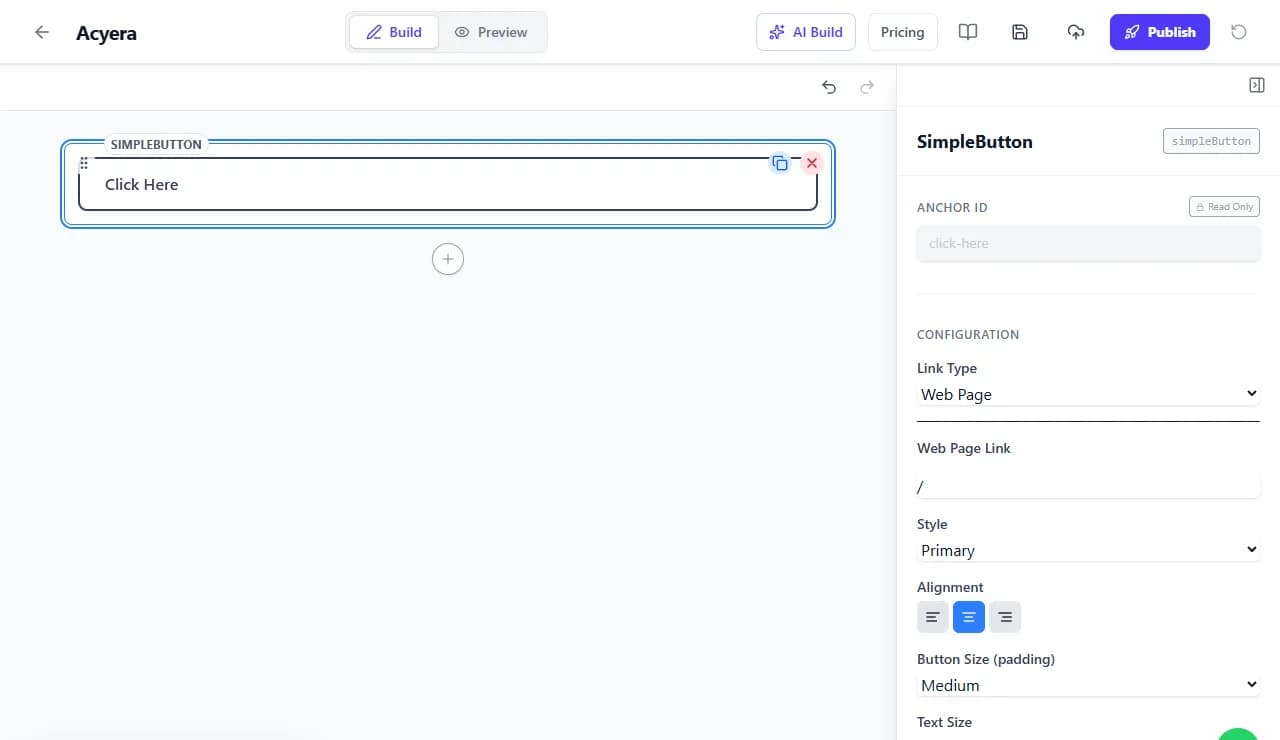
Write the price, what is included and your refund rule right next to the button, so nobody pays without knowing what for.
Step 3: confirm and deliver
- You get a notification from the provider when someone pays. Check it in their dashboard, not only in the customer's screenshot.
- Message the customer to confirm payment and agree the delivery or appointment.
- Keep the provider's receipts: they are your sales record.
When a cart and WhatsApp work better
If you sell many products or customers often order several at once, a cart is easier than one link per product. On Acyera, product photos can show a price and an "Add to Cart" button, and the cart sends the whole order to your WhatsApp or email. You then reply with the total and a payment link or your mobile money details. How to start selling online shows how to set it up.
Be clear with customers: on Acyera the customer does not pay inside the website itself. They pay on your payment provider's page, or by mobile money or transfer after you confirm the order. Say this near your prices so nobody is surprised. More on the cart: online store features.
Staying safe
- Only paste payment links you created yourself, from your own provider dashboard.
- Never ask customers for card numbers or PINs on WhatsApp or by email.
- Watch for fake payment screenshots: confirm every payment in your provider or mobile money account before you deliver.
Questions people ask
FREE TO START
Ready to build yours?
Build on Acyera with no account, then save your page to a free account when you are happy with it. The free plan gives you one page on an address like yourname.acyera.com.