FREE GUIDE
How to take orders on WhatsApp
By the Acyera team · Updated 4 October 2026
The short answer: use the free WhatsApp Business app on your business number, add a WhatsApp button to your website that opens a chat with a ready-written first message, and if you sell products, let your website cart send the whole order to WhatsApp. Then confirm each order, send payment details, and keep customers updated in the same chat.
For most small businesses in Uganda, Kenya and Nigeria, WhatsApp is where sales actually happen. Customers trust it, it works on any phone, and it costs nothing per message. Your website's job is to send people into that conversation already knowing what they want.
Step 1: set up WhatsApp Business
WhatsApp Business is a free app from WhatsApp for business accounts. It works like normal WhatsApp, with tools for selling:
- A business profile with your address, hours, description and website link.
- A catalogue of products with photos and prices inside WhatsApp.
- Quick replies for the messages you send most, such as delivery fees or payment details.
- Labels like "New order", "Paid" and "Delivered" to keep track of orders.
- Greeting and away messages so nobody waits in silence.
Use a number dedicated to the business if you can, so orders do not get lost among family chats.
Step 2: add a WhatsApp button to your website
A visitor who has to copy your number into WhatsApp often gives up. A button that opens the chat directly does not lose them. On Acyera, add the WhatsApp block to your page and fill in its settings:
- WhatsApp phone number with the country code and no plus sign or spaces, for example 256701234567 for Uganda, 254712345678 for Kenya or 2348012345678 for Nigeria.
- Pre-filled message: the first words of the chat, already typed for the visitor. Make it specific: "Hello, I saw your website and I would like to order" works better than "Hi".
- Button text and colours. The block shows as a floating button that stays in the corner of the screen as the visitor scrolls.
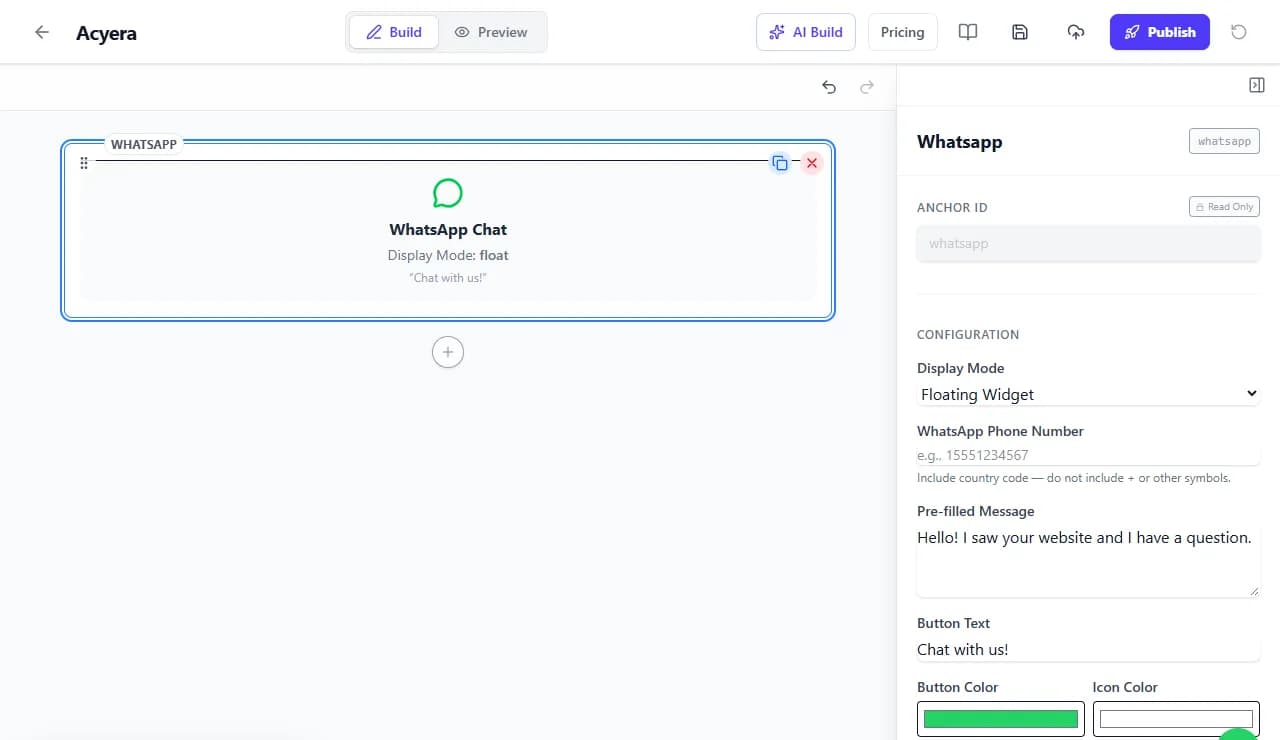
Plans: the WhatsApp block is on the Essential plan ($4.99 a month) and above, and a free site can use it for 21 days after its first publish. On the free plan you can still link any ordinary button to WhatsApp: set the button's link to https://wa.me/ followed by your number, for example https://wa.me/256701234567.
Step 3: let your cart send whole orders
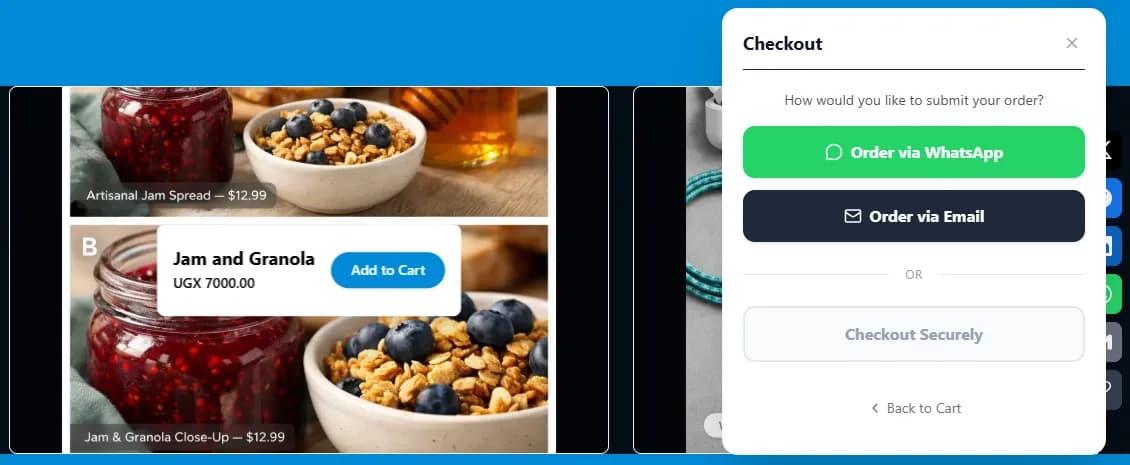
If you sell several products, a cart saves a lot of back and forth. On Acyera, product photos can carry a price and an "Add to Cart" button. When the visitor chooses "Order via WhatsApp", a chat opens with you, with every item, quantity and the total already written in the message. How to start selling online shows how to set the products up.
Step 4: answer orders well
- Reply fast. A customer who messaged you is ready to buy now. Set a greeting message for when you are busy.
- Confirm the order in one message: items, total, delivery fee, address and delivery time.
- Send payment details with a quick reply: mobile money number and name, bank details, or a payment link. Confirm when the payment arrives.
- Label the chat so you can see at a glance which orders are paid, packed and delivered.
- Follow up after delivery and invite a review.
Step 5: bring people to the button
- Share your website link on your WhatsApp status with a product photo, so viewers can see prices and tap to order.
- Put the website link in your WhatsApp Business profile, and the WhatsApp link on your website.
- Add both to your Google Business Profile. How to get your business on Google explains the profile.
FREE TO START
Ready to build yours?
Build on Acyera with no account, then save your page to a free account when you are happy with it. The free plan gives you one page on an address like yourname.acyera.com.